The Data Correction feature on the Data Forms page allows administrators to resubmit data using another Collect template. Ideally, the feature is designed to correct data mappings for forms that have already been pushed from Collect Mobile and resubmit the data. This Data Correction feature can be applied to adjust data whether it failed or passed the EDP checks. Incorrect data mappings might not produce EDP check errors, but may result in data being loaded to the wrong fields in the database.
Note: Data Correction is available only to administrators. |
|---|
Warning: The Data Correction feature will use the commit type that is defined by the format setup in Enterprise. It will produce a new EDD (i.e., data form) that is processed by Enterprise EDP. It is imperative to know which commit type is being used to assess whether a previously submitted data form needs to be rolled back prior to using the Data Correction feature. |
Example Potential Data Correction Scenarios
Example 1
Template A has a data mapping with an invalid formula in the mapping, causing it not to create a parameter record when data is entered in the field.
Data was pushed through Template A all week, and the issue was only discovered at the end of the week. The template was then updated with the fix (Template A, v2) and the field crew continued their work.
Data collected prior to the fix needs to be resubmitted through the new template so it will produce the new parameter record. The Data Correction feature can be used to resubmit the original data via the new template.
Example 2
Template A has a comment field that is mapped to ‘Custom Field 1’ in the DT_LOCATION table. This mapping was incorrectly setup and mapped to ‘remark’ instead.
Data was pushed through Template A all week, and the issue was only discovered at the end of the week. The template was then updated with the fix (Template A, v2) and the field crew continued their work.
Data collected and submitted prior to the fix uploaded data to the wrong field. The wrong data must be removed and the correct data inserted. The next steps depend on the commit type set for the format in Enterprise EDP.
If the commit type is "Insert and Replace", the Data Correction feature can be used to resubmit the original data via the new template without any additional steps.
If the commit type will not replace the wrong data values, then the original EDDs should be rolled back from the database to remove the data from the wrong field prior to using the Data Correction feature to resubmit the EDDs via the new template.
Template Setup
Prior to applying a data correction to a pushed data form, any incorrect mappings in the form's template need to be corrected. The following steps provide a process overview:
1.On the Template Designer page, copy the original template that contains the incorrect data mapping(s).
2.Give the template copy an updated name and/or version to easily identify the corrected template (e.g., original template version 2.1, corrected version 2.2, etc.)
3.In the template copy, make any necessary changes to correct the data mappings.
4.Manually test the corrected template prior to publishing:
a.Set the status of the corrected template to Test.
b.Create a data form using the corrected template.
c.In Collect Mobile, populate the form with testing records that would trigger the fixed data mapping(s) and push the data to Collect Enterprise.
d.Download the EDD.
e.Open the EDD in Professional EDP and evaluate the EDD sections to ensure data were mapped appropriately.
5.Once the template is ready, publish the corrected template.
Apply Data Correction
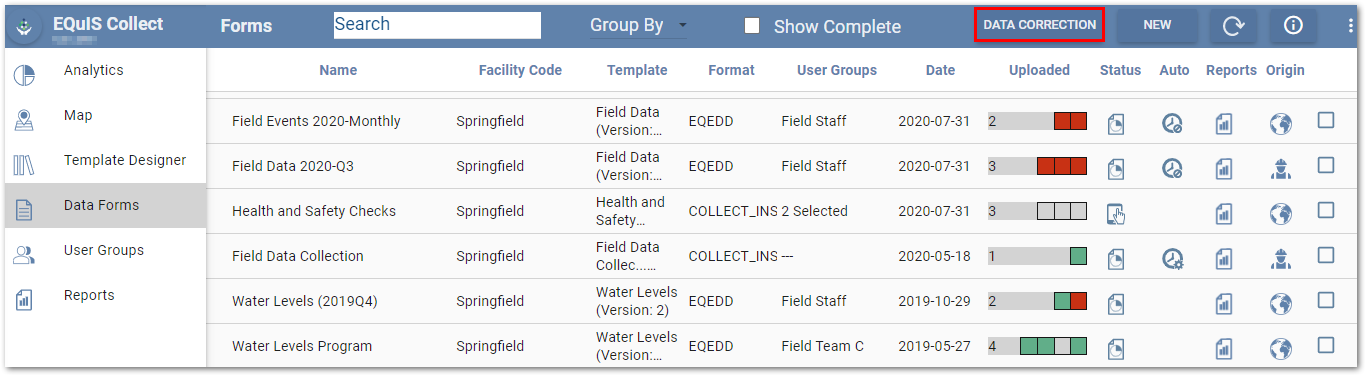
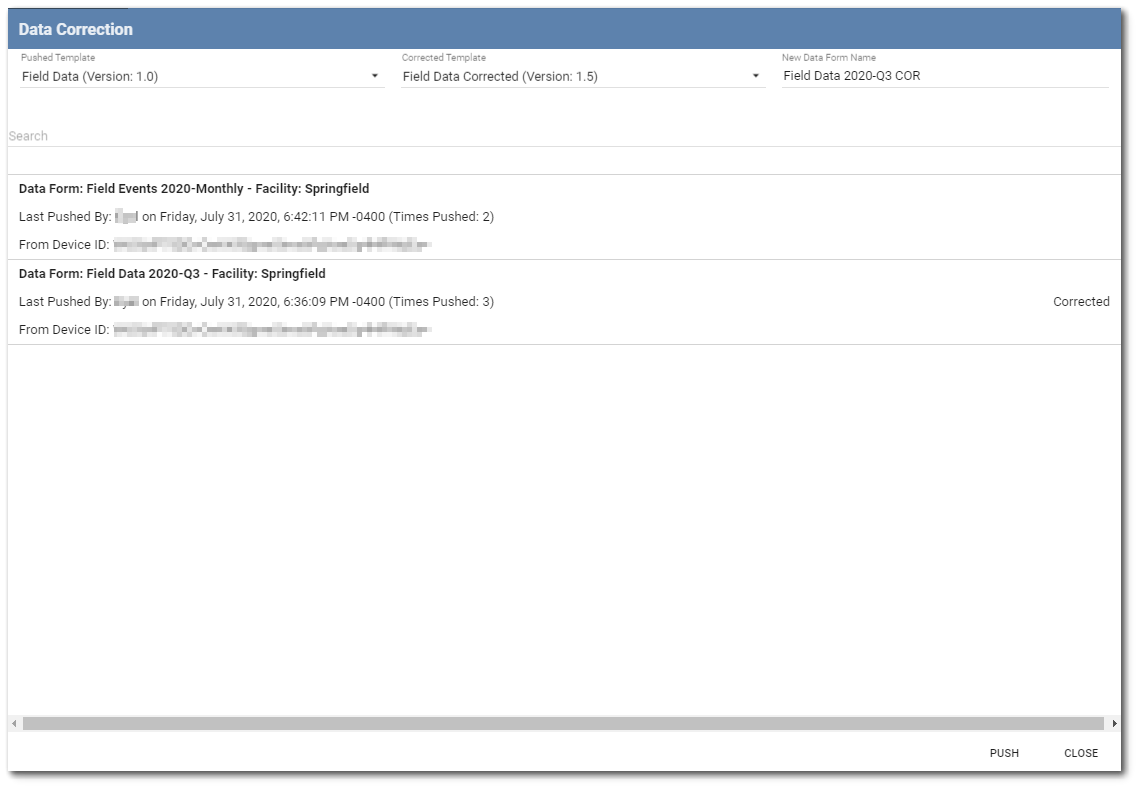
Click the Data Correction button in the right corner of the Data Forms page to open the Data Correction dialog window. The dialog displays three sections: Pushed Template, Corrected Template, and New Data Form Name.
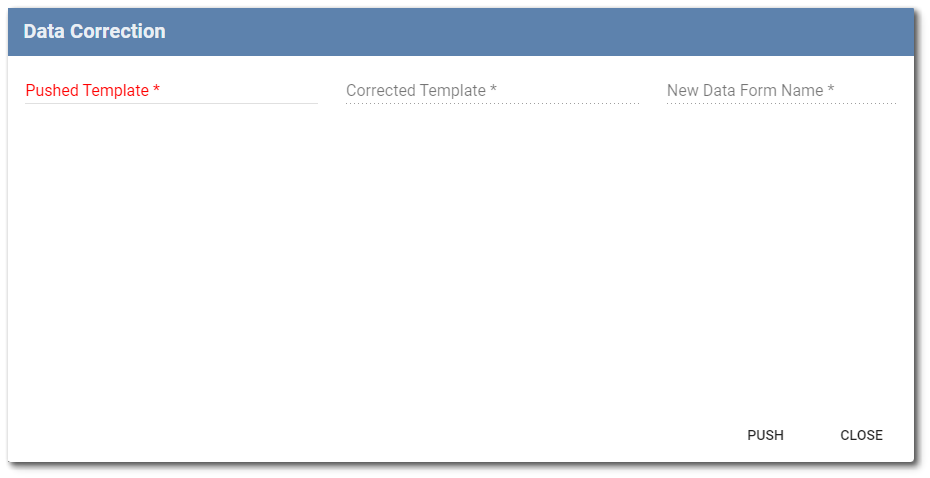
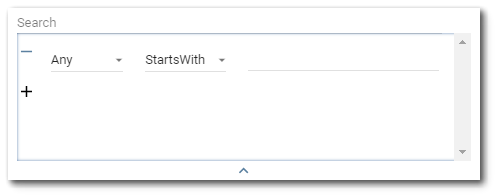
The Pushed Template and Corrected Template fields open to a search dialog window. An advanced search option is available by clicking the down arrow under the Search field. Items that can be searched (TemplateName, TemplateVersion) will appear in the first drop-down. By default, the first drop-down will be selected as Any. The Any option will search all the items to match the expression with any of the properties. The second drop-down allows the user to select an operator (e.g. Starts With, Ends With, Equals, Contains). By default, the operator is set to StartsWith. The operator defines how the expression is matched to the items being searched. Enter the expression to be searched in the text field. Multiple expressions can be set by clicking the + button below the first expression. Expressions can also be removed/cleared by clicking the – button to the left of each expression. To collapse the advanced search dialog, click the up arrow at the bottom of the advanced search dialog. Note that collapsing the advanced search will not clear search expressions that have been setup.
In the Pushed Template field, select the original template that was used when the data form was pushed from Collect Mobile. This should be the template that had the incorrect data mappings. A list of submitted data forms will appear based on the selected template. Select the data forms that need to be corrected.
In the Corrected Template field, select the newly corrected and published template.
In the New Data Form Name text box, enter a new form name for the resubmitted data form. Once all the information is selected and entered, click the Push button.
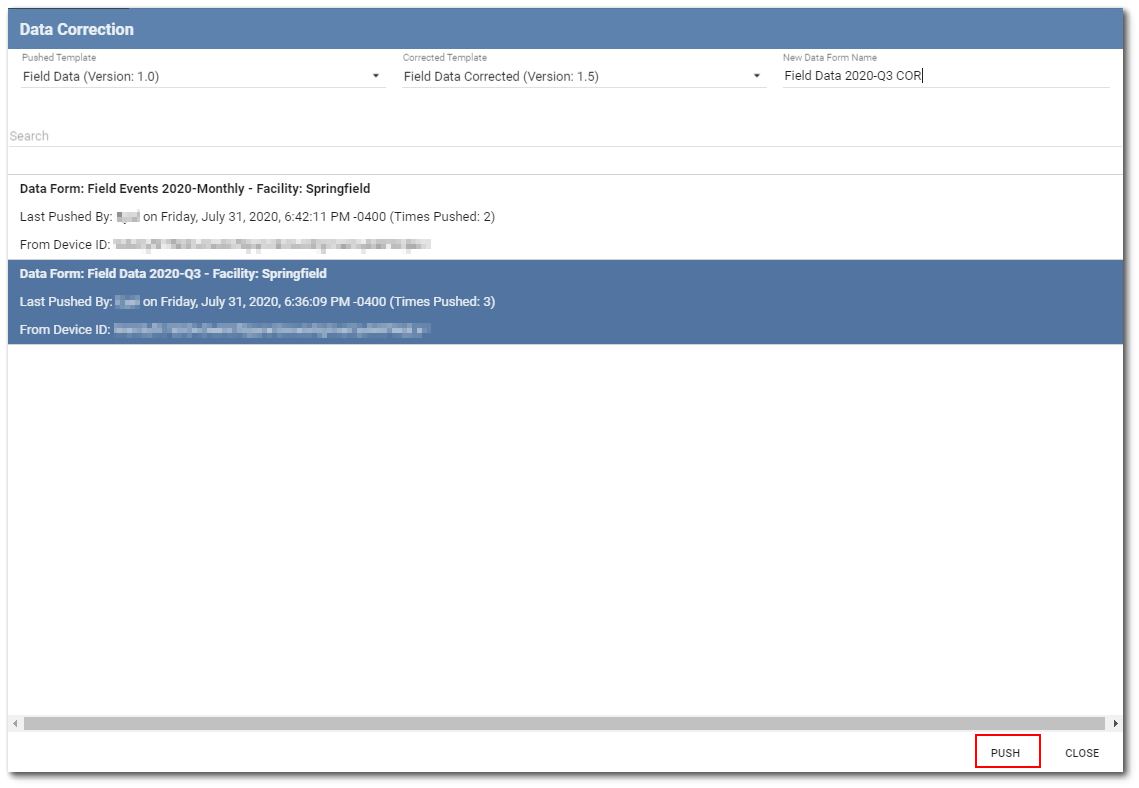
Each data form selected will display a status dialog indicating it is being processed and once finished will display “Corrected.” Once all the forms have finished, click Close to exit the dialog.
The resubmitted data form will be available on the Data Forms page. The compilation of the data corrected data form will be dependent on if the user and the device are the same across all individual uploads to the data form. The different scenarios are listed below:
Scenario #1: If both data packages were submitted by the same user on the same device, the single resulting data corrected data package will be a compilation of all the records from the selected data packages.
Scenario #2: If the data packages were submitted by the different users on different devices, the resulting data corrected data packages will stay separate. There will be a data corrected data package for each user's data.
Scenario #3: If both data packages were submitted by the same user but on different devices, the resulting data corrected data packages will stay separate. There will be a data correct data package for each device the user used.
Tip: Once the new corrected data form is created and processed, users may want to remove the previously pushed data forms from displaying on the Data Forms page. To remove a data form from displaying on the page, click the Status icon for the data form and select the Mark Complete checkbox to mark the form as complete. |
|---|