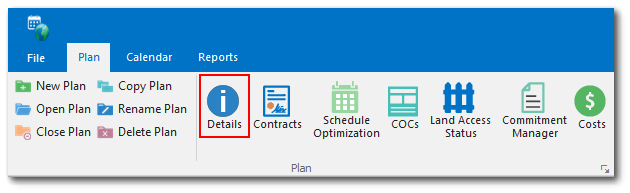
Plan information can be edited by clicking the Details button in the Plan section of the Plan ribbon.
Possible changes include updates of details such as Description, Client, Start Date, End Date, Remarks, Default Naming Schemas and Default Units.
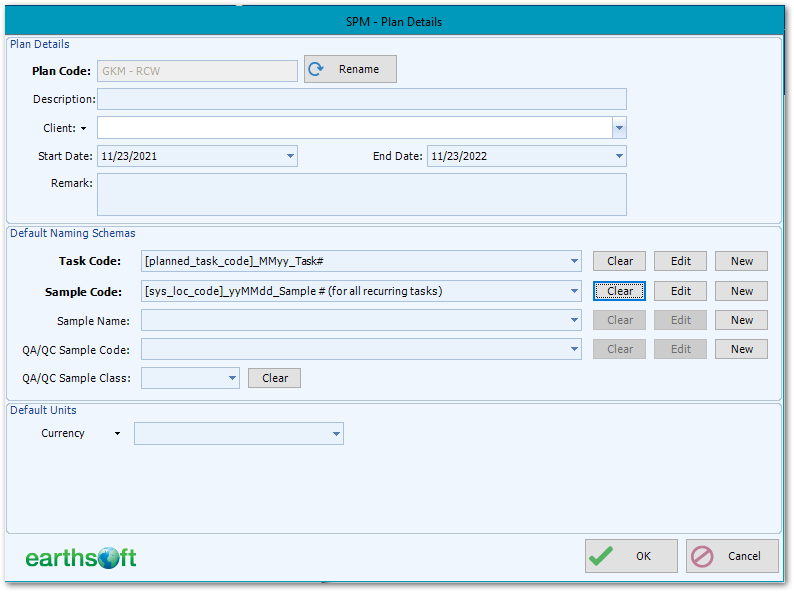
Click OK to save modified plan information.
Note: When a default naming schema is modified, newly created tasks and/or samples will automatically reflect the changes. However, existing items require manual updates. Task codes for existing tasks cannot be altered to match the new schema, but existing samples can be updated. To do this, edit the samples, update the sample code field to align with the revised schema, click the Apply Schema button, and apply the current schema to all samples. Additionally, ensure these changes are propagated to the relevant scheduled tasks using Change Propagation Mode. |