Form Name: Enterprise EDP: EDD List
File Name: EarthSoft.Forms.Library.47029.dll
Software: EQuIS Professional
Source: EQuIS Professional install
Description: The EQuIS Professional Form "Enterprise EDP: EDD List" displays EDD information and allows the user to download EDDs already processed. By default, the form only displays EDDs processed by Enterprise EDP. If enabled, the form also displays EDDs processed by Professional EDP (see the EarthSoft.EDP.Pro.RegisterFile article).
Note: The Viewer permission on the Facility and EDD object types is required to download and/or view EDDs for the EDP EDD Status widget and the "Enterprise EDP: EDD List" form for users who are not administrators and who did not submit the EDD(s). Please see the Permissions chapter for more information. |
The form shows processing times from ST_FILE_REGISTRATION and ST_TASK.STUCK_DATE. The form converts times for EDDs processed by Enterprise EDP, stored in Universal Time Coordinated (UTC), to the local machine's date/time settings. For EDDs submitted through EQuIS Professional EDP 7.23.1 or earlier, the displayed times reflect the submitting machine's local time zone and are not converted. EDDs processed by Professional EDP 7.23.2 onwards are stored in UTC and are therefore converted to the local machine's date/time settings.
Note: Clicking away from a selected record will change the time of the record in any populated date-time columns. Rerun the form to reset the dates to the correct date and time. This bug will be resolved in a future build of EQuIS. |
Installation Instructions: The "Enterprise EDP: EDD List" Form is included with the EQuIS Professional installer. No additional steps are necessary.
Overview:
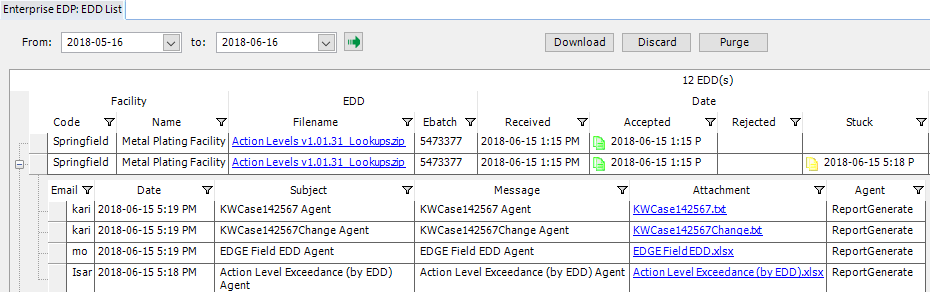
Toolbar Functions
Dates – Select a date range and press the Go arrow. The “To:” date should be set as the day after the date of the records the user is searching for.
Download – Download all of the selected EDDs to a folder or click the filename (highlighted in blue) to download EDDs.
Discard – Click this button to discard the selected EDD(s). The EDD zip file's Binary Large Object (BLOB) will be removed from the database, but all related records/history will be retained.
Purge – Click this button to purge the selected EDD(s). The EDD file(s), and related history and notices, will be removed from the database. Actual data will not be affected (this is not the same as an EDD rollback). EDDs associated with EQuIS Information Agents (EIA) trigger reports cannot be purged.
Note: EDDs uploaded via Enterprise can be expanded by using the plus-sign drop-down (see screenshot above). The drop-down will not be available for EDDs uploaded from Professional EDP, if that option has been selected. |
Users logged in as an Administrator will see EDDs for any facility. Users not logged in as an Administrator will only see EDDs for the currently selected facility (or facility group).