Form Name: Facility
File Name: N/A
Software: EQuIS Professional
Source: EQuIS Professional install
Description: In EQuIS Professional, use the Facility form to add a new facility or edit facility information.
Installation Instructions: The Facilty form is part of the EQuIS Professional installation. No additional steps are necessary.
Create New Facility
1.In EQuIS Professional, log into the database where the new facility will be created.
2.On the Home ribbon, click Forms .png) .
.
3.Within the Forms window, select Facility, then Open. This automatically opens details for the current facility.
4.Click New  .
.
5.Fill in details for the new facility. Required fields have red labels.
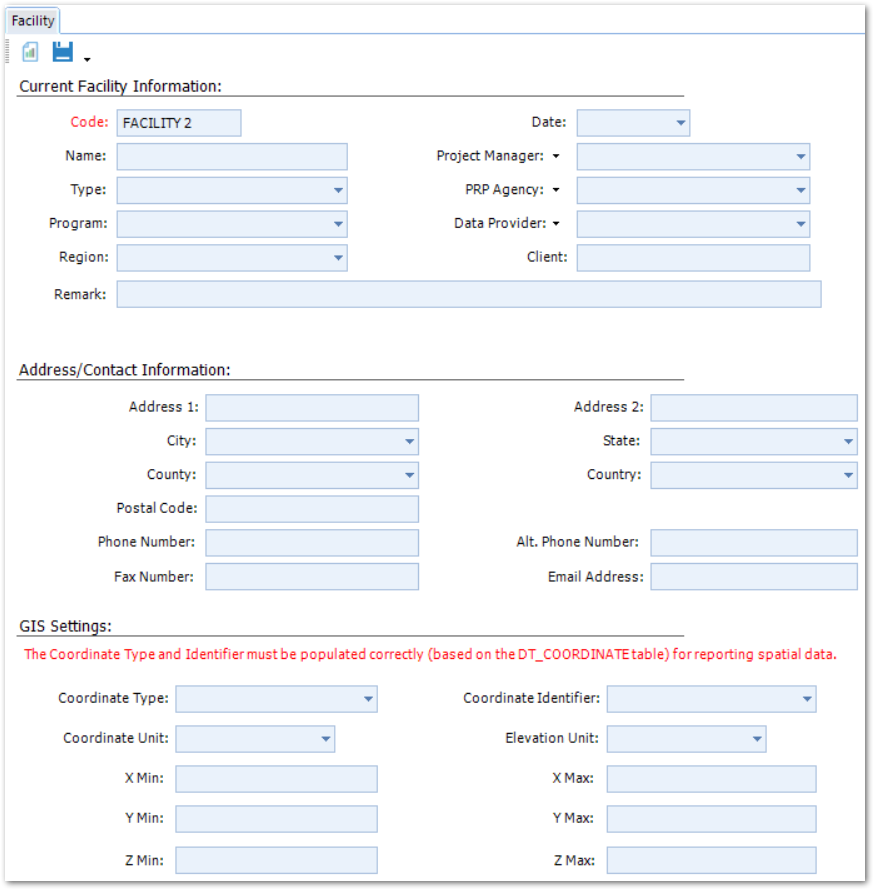
Note: The Name field can be used to provide a more descriptive name for the facility. The facility Code only allows 20 characters, whereas the facility Name allows 60 characters. |
6.Click Save to save the new facility. Users can now login to the new facility. Once logged into EQuIS, the EQuIS Login window displays both FACILITY_CODE and FACILITY_NAME. If no Facility Name exists, only the Facility Code appears.
Notes: •DT_FACILITY.FACILITY_CODE, which corresponds to "Code" on the Facility Form, must be unique. When the Facility Form is opened, the current facility's information appears and may be edited and saved. Outside of that scenario, an existing facility's data cannot be overwritten using this form. •When the "New" button is pressed, clearing the Facility Form, only a new facility may be created. If an existing facility is entered into the Code field, the database does not save due to the unique constraint placed on FACILITY_CODE by the database, although the "Save Successful" message still appears. |
Mapping Information
Current Facility Information
•Code = DT_FACILITY.FACILITY_CODE
•Name = DT_FACILITY.FACILITY_NAME
•Type = DT_FACILITY.FACILITY_TYPE
•Program = DT_FACILITY.PROGRAM_CODE
•Region = DT_FACILITY.SYS_REGION_CODE
•Date = DT_FACILITY.START_DATE
•Project Manager = DT_FACILITY.PROJECT_MANAGER*
Note: For a DT_FACILITY.PROJECT_MANAGER value to be present in the Facility Form, it must match the PERSON_NAME field for a DT_PERSON table record. |
•PRP Agency = DT_FACILITY.PRP_AGENCY, referencing RT_COMPANY.COMPANY_CODE VALUES*
•Data Provider = DT_FACILITY.DATA_PROVIDER, referencing RT_COMPANY.COMPANY_CODE VALUES*
•Client = DT_FACILITY.CLIENT
•Remark = DT_FACILITY.REMARK
* Edit these lists with the drop-down arrows next to the field name in the form:
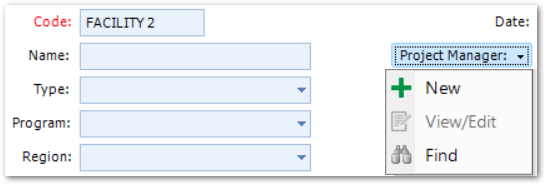
Note: When a record exists where RT_COMPANY.COMPANY_CODE exceeds 20 characters, a "Failed to enable constraints." error will occur when trying to add a Project Manager, PRP Agency or Data Provider in the Facility Form. |
Address/Contact Information
Fields in the form correspond to fields in the DT_FACILITY table.
Notes: •DT_FACILITY.STATE uses RT_STATE.STATE_CODE as the constraint. •The drop-down options for city, county, and country within the form are based on all database entries within those fields in DT_FACILITY. |
GIS Settings
The Coordinate Identifier and Coordinate Type fields under GIS settings relate to the DT_COORDINATE table. Almost all EQuIS Professional exports require these fields, which must be populated.
•Coordinate Type = DT_FACILITY.COORD_TYPE_CODE, from RT_COORD_TYPE.COORD_TYPE_CODE
•Coordinate Unit = DT_FACILITY.COORD_UNIT, using RT_UNIT.UNIT_CODE as the constraint
•X Min, Y Min, Z Min, X Max, Y Max, Z Max correspond to fields in the DT_FACILITY table (e.g., X_MIN, Z_MAX)
•Coordinate Identifier = DT_FACILITY.IDENTIFIER
•Elevation Unit = DT_FACILITY.ELEV_UNIT, from RT_UNIT.UNIT_CODE